10 October 2026 · Astrummo
Vedic vs Western Astrology: Why Your Zodiac Sign May Change
Understanding that distinction helps you compare your charts without treating one as a mistake.
Set up your Daily Alignment reminder in Astrummo, allow phone notifications, and choose a time that fits your routine.
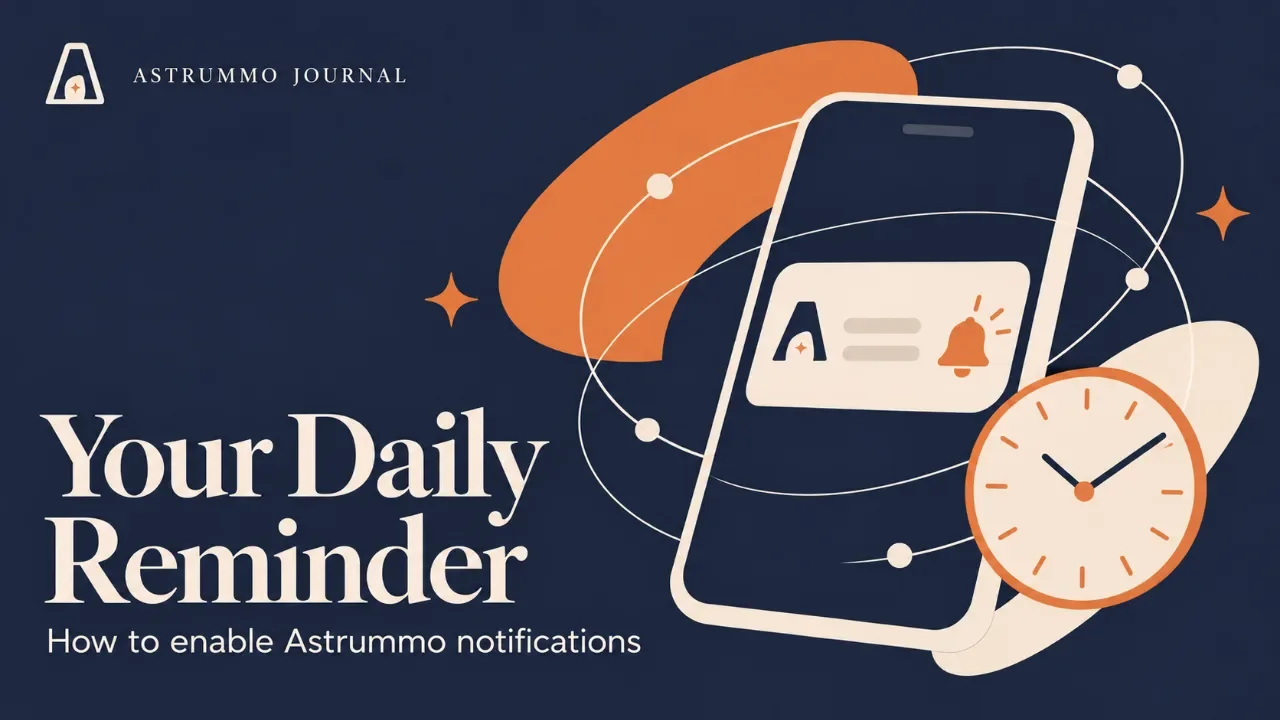
Your daily guidance is easier to keep close when it arrives at a time that suits you. Astrummo's notification settings let you choose whether to receive a Daily Alignment reminder and set your preferred delivery time.
There are two settings to check: your phone must allow Astrummo notifications, and your chosen reminder must be enabled inside Astrummo. Turning on one does not automatically turn on the other.
Follow the walkthrough below, then use the written steps if you need to pause or check a setting.
Astrummo is currently available on Android. The iPhone settings section is included for readers who have access to an iOS version; it does not mean the app is publicly available on the App Store yet.
Open Astrummo and go to You → Notifications.
If notification permission has not been granted, use Enable notifications and approve your phone's permission prompt when it appears.
If you previously declined permission, look for Open device settings, where available, or follow the phone settings instructions below. You do not need to keep searching for a permission popup that your phone no longer shows.
If permission is already allowed, continue to your Daily Alignment preference.
Open your phone's Settings.
Go to Notifications → App notifications.
Find Astrummo. Select All apps if it does not appear in the initial list.
Turn on the main notification permission for Astrummo.
Some phones place the same control under Settings → Apps → Astrummo → Notifications. Menu names depend on the manufacturer and Android version. If neither route matches, search your Settings app for “Astrummo” or “notifications.”
Google's official Android notification guide explains app permissions and the options for showing notifications on your lock screen. If permission is enabled but an alert is silent or hidden, check its notification category and display settings too.
Open Settings → Notifications → Astrummo, then turn on Allow Notifications. Depending on your iOS version, you may also find the control through Settings → Apps → Astrummo → Notifications.
Choose the alert locations you want, such as the Lock Screen, Notification Center or banners. Sound is a separate choice; a notification can be enabled without making a sound. Apple's official notification settings guide explains these controls.
Return to Astrummo → You → Notifications.
Turn on Daily Alignment, then choose your preferred time using the controls shown in your version of the app. Pick a time that fits your routine—for example, when you usually have a quiet moment in the morning.
The illustrated walkthrough shows time buttons as an example. Follow the available controls in your actual app rather than expecting every screen to match the illustration exactly.
Notification preferences save automatically in the workflow shown. Look for the saved or synchronized confirmation before leaving the screen. If an error appears, check your connection and try again rather than assuming the change was saved.
Daily Alignment notification delivery requires an eligible active trial or Astrummo Pro access. Allowing notifications on your phone does not start a subscription or unlock Pro features.
When your Daily Alignment reminder arrives, tap the notification to open its linked insight inside Astrummo.
Opening the app from its home-screen icon is a different action: it may take you to the app's usual starting screen instead of following the notification's link.
Treat your chosen time as a delivery preference rather than an alarm-clock guarantee. Connectivity and phone notification controls can affect when an alert appears.
Start with the two separate permissions: Astrummo notifications must be allowed in your phone settings, and Daily Alignment must be enabled in the app.
Then check that your selected time is correct, your preference change saved successfully, and your trial or Pro access is eligible for delivery. Choosing a time that has already passed today is not a reliable immediate test.
If the notification arrives without a sound, or does not appear where expected, check the phone's alert settings. Do Not Disturb or an iPhone Focus can also silence alerts. Apple's Focus guide explains how to allow particular apps while a Focus is active.
If you still need help, contact Astrummo Support with your phone model, operating system, app version and a brief description of the problem. Mention whether you never receive the notification, receive it silently, or receive it but cannot open the insight. Those are different issues and help us investigate more precisely.
Return to You → Notifications to change your Daily Alignment time or switch off that reminder. To block all Astrummo notifications, use your phone's notification settings.
Turning off notifications does not cancel an Astrummo subscription. It changes how reminders reach your phone.
Your daily insight should fit your routine. Choose a time that works for you, keep the reminders you find useful, and adjust them whenever your routine changes.
10 October 2026 · Astrummo
Understanding that distinction helps you compare your charts without treating one as a mistake.
15 October 2026 · Astrummo
Learn how Vimshottari Dasha works, why the Moon’s Nakshatra determines your planetary periods, and how Mahadasha, Antardasha and transits are used in Vedic astrology.
12 October 2026 · Astrummo
Discover all 27 Nakshatras in Vedic astrology, including their meanings, symbols, ruling planets, deities, zodiac degrees, and influence on your birth chart.
10 October 2026 · Astrummo
Learn how to read your Vedic birth chart, from your Ascendant and houses to planetary placements, nakshatras, and aspects—with a real chart example.
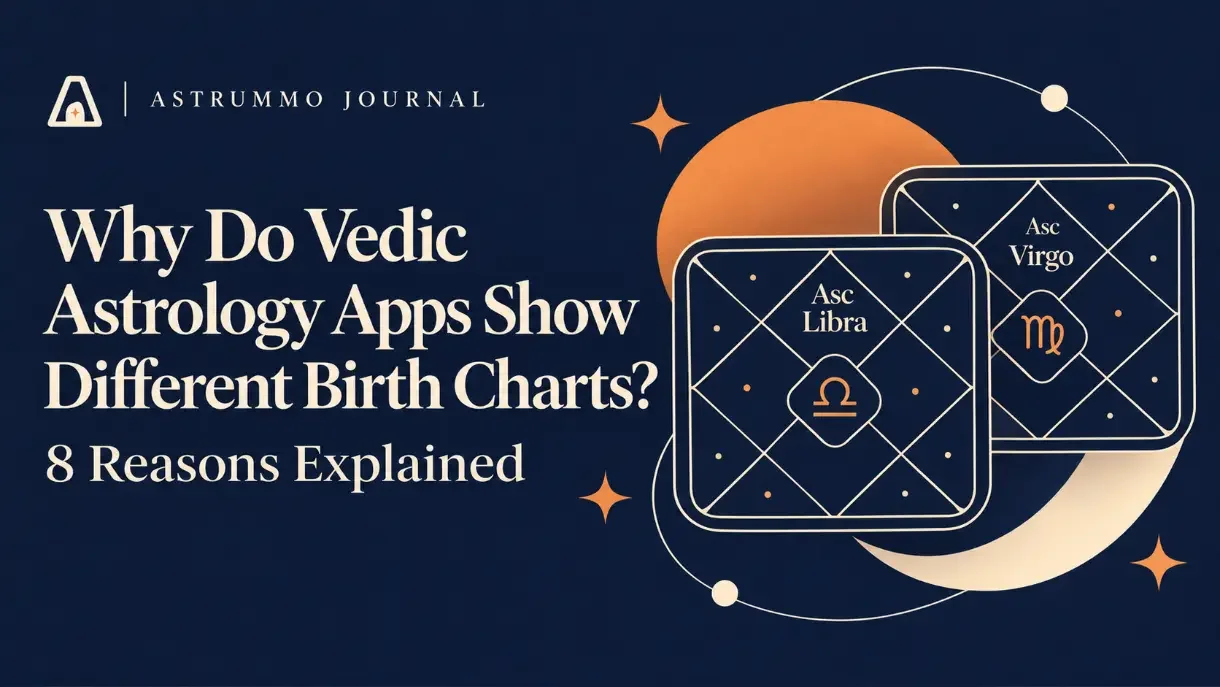
17 October 2026 · Astrummo
Why do Vedic astrology apps show different birth charts? Discover 8 reasons, from birth time and GPS coordinates to ayanamsa, Rahu, Ketu, and D9 charts.